YOUR CART
- No products in the cart.
Total:
$0.00

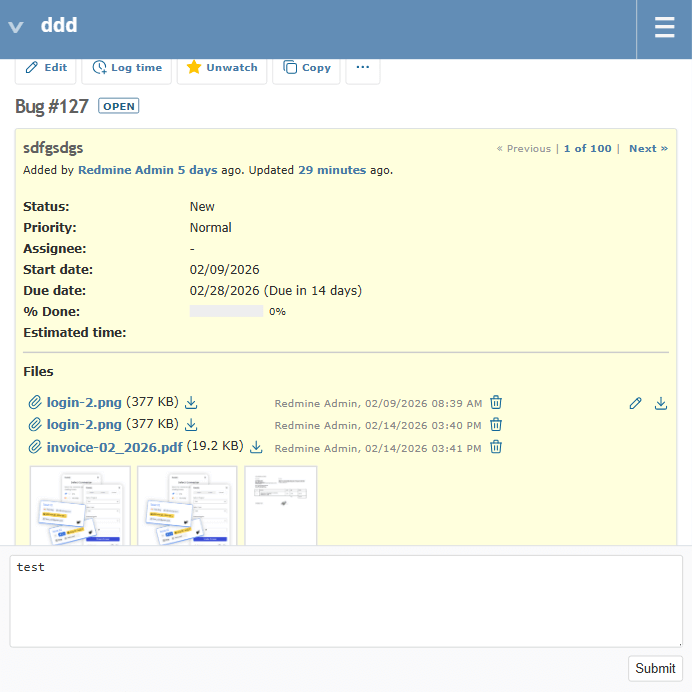
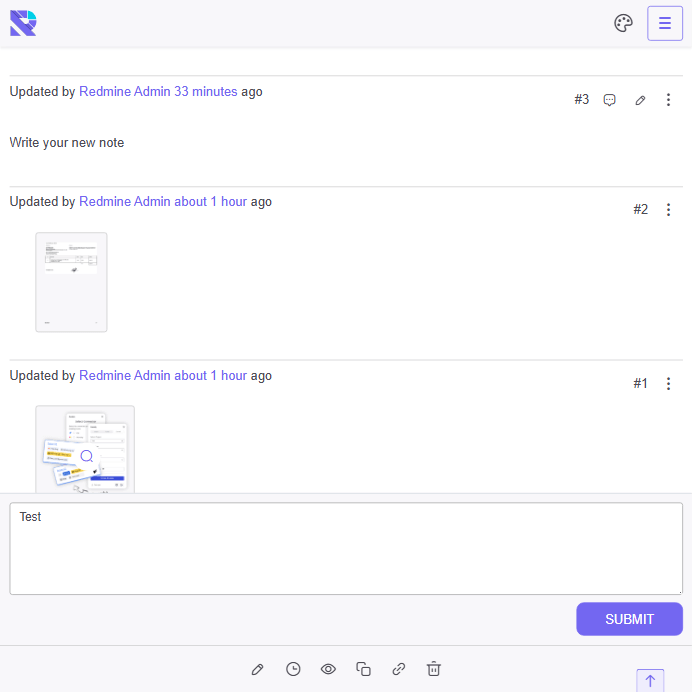
Create notes on the fly
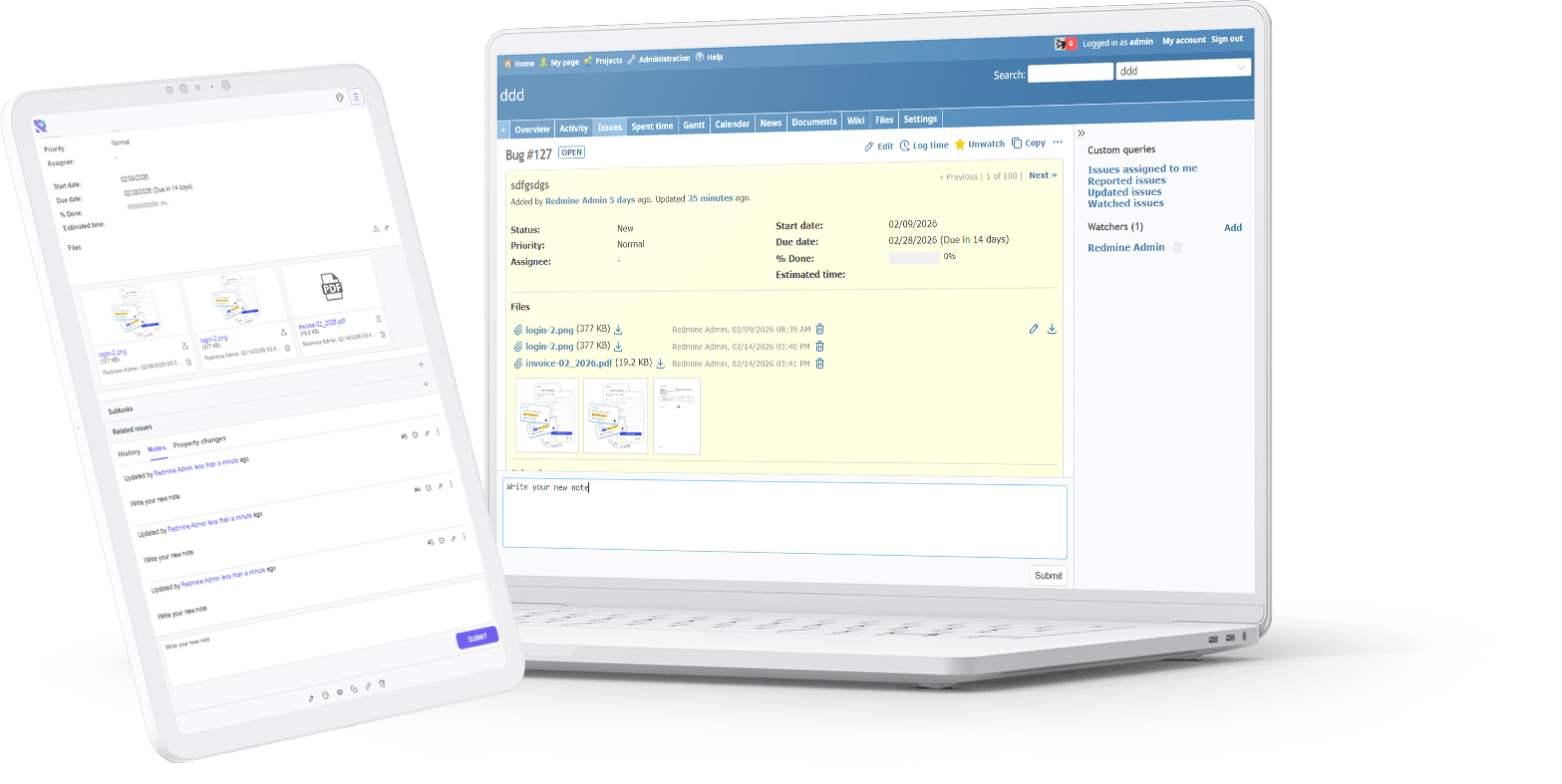
 Quick access
View your note history and create new ones on the fly.
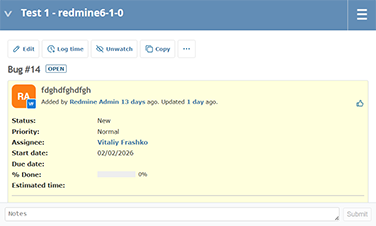

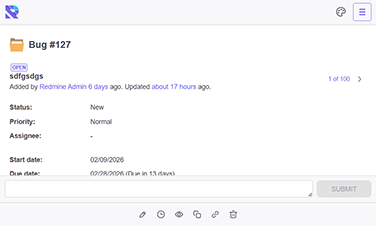

Option 1: Short and clear (good default)
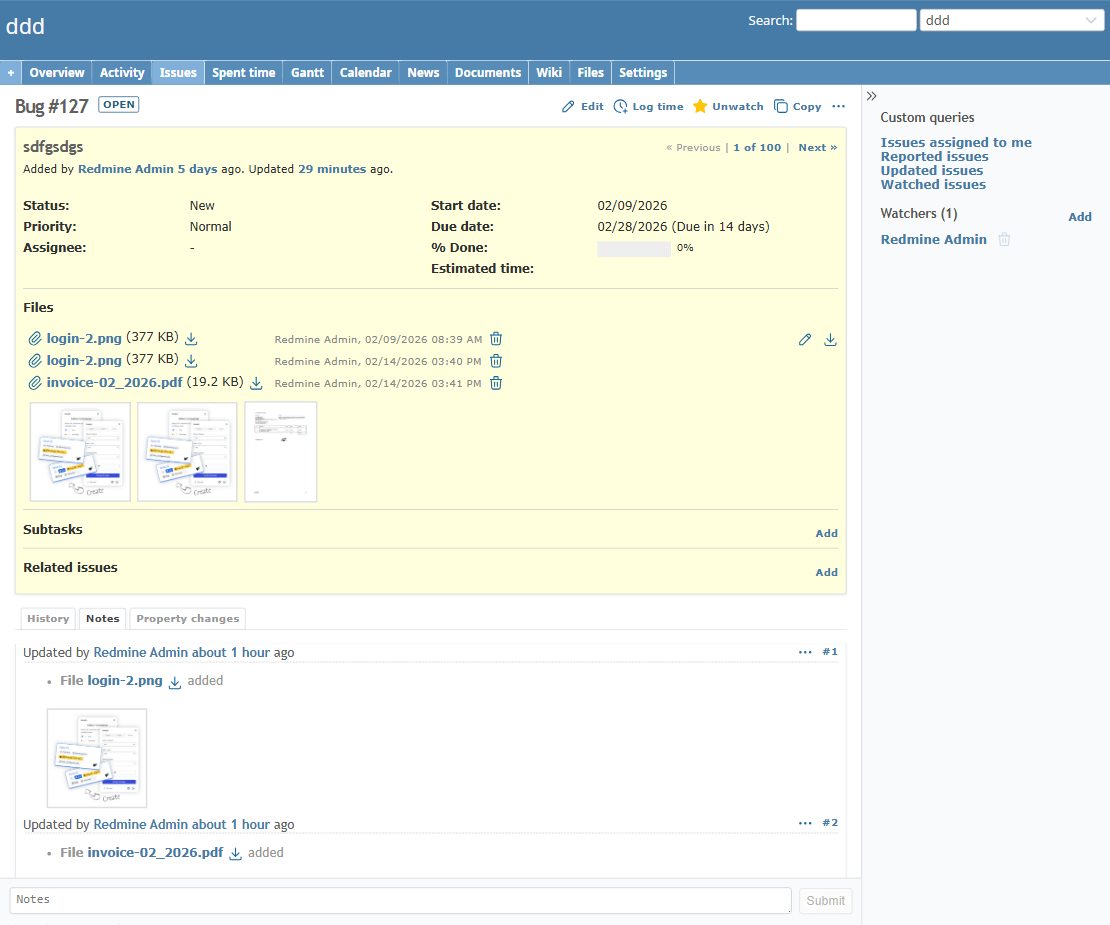
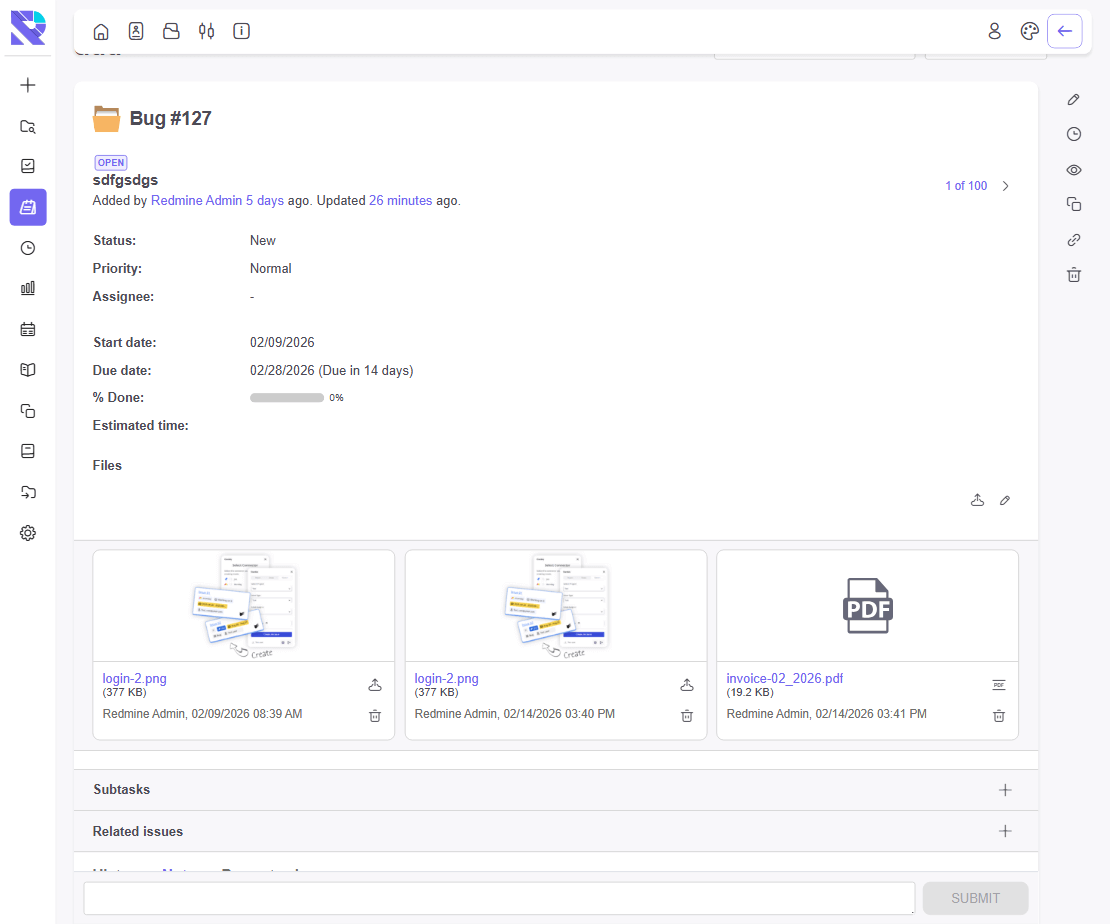
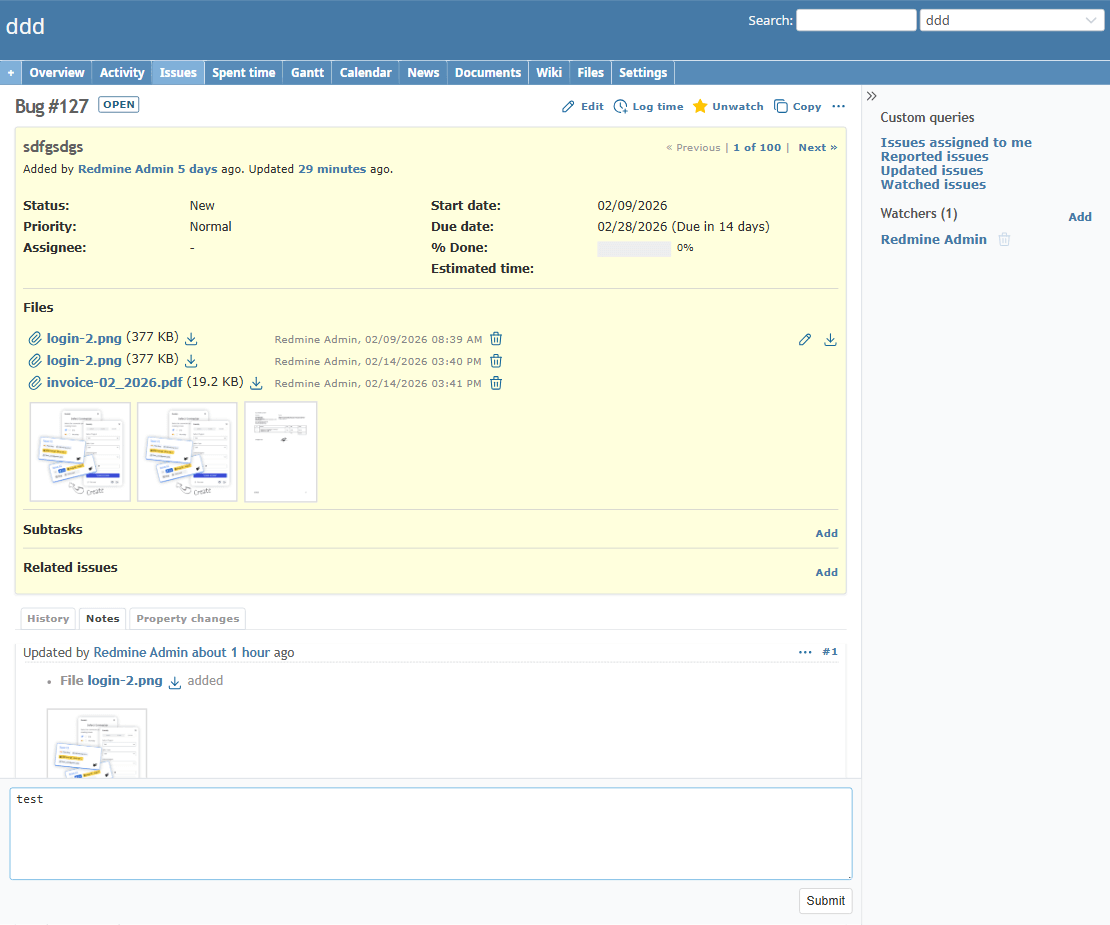
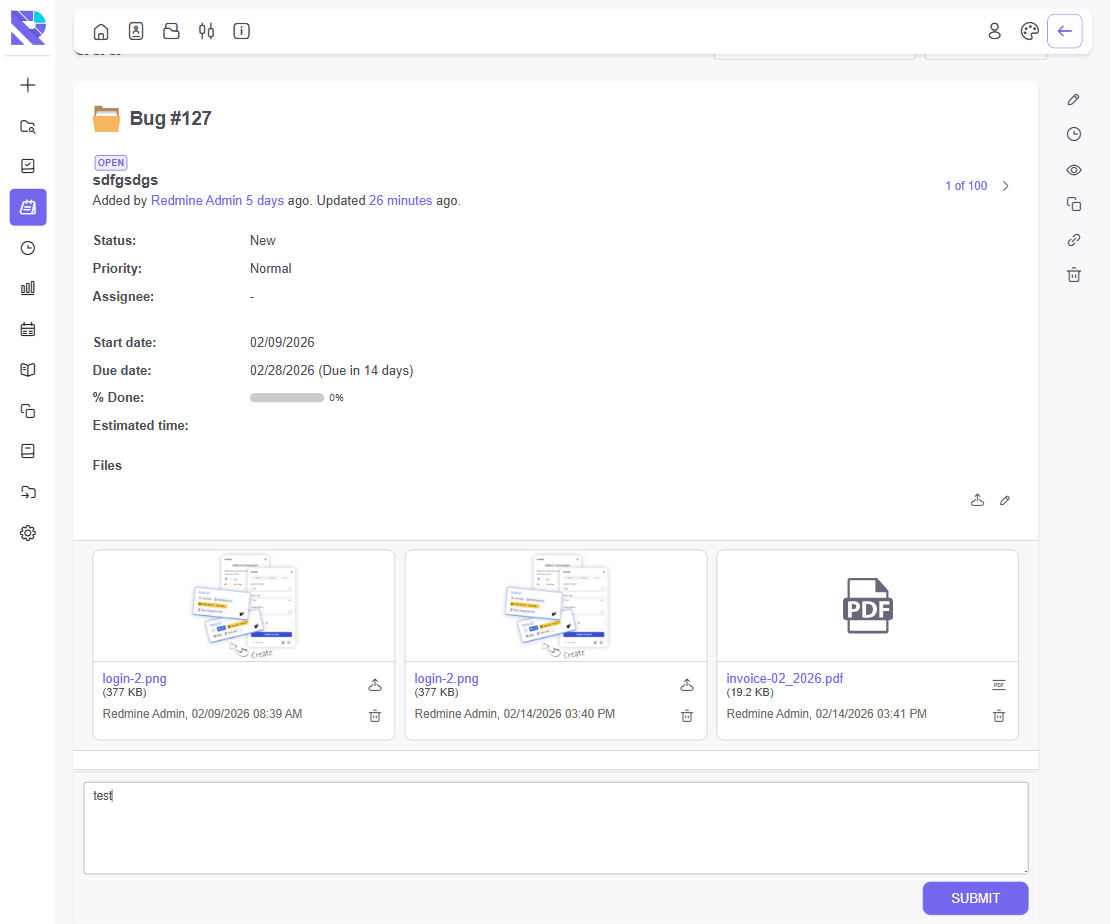
RE-Note plagin a lightweight “quick note” box to the bottom of every Redmine issue page. Write a note, click Submit, and it’s saved using Redmine’s native journal notes—so it appears in the issue history exactly like standard comments/notes. The Submit button is automatically disabled until text is entered, keeping the UI clean and preventing empty updates. Fully compatible with Redmine translations and works with the Classic theme on Redmine 6.1.
Option 2: More marketing/benefits
top scrolling to find the notes area. re-note places a simple note editor at the very bottom of the issue page, right where you finish reading the task history. Add a note in seconds and save it as a native Redmine journal entry—no custom tables, no external storage, and notes appear in the standard history with notifications handled by Redmine. The button stays inactive until you type, and labels use Redmine’s built-in translations for a consistent UI across languages.
Option 3: Technical, for admins
re-note is a minimal Redmine plugin that injects a note form into the issue view and creates notes using Redmine’s default Issue Journal mechanism. No database migrations are required. The Submit button is disabled when the input is empty. UI labels rely on core i18n keys (field_notes, button_submit) to match your Redmine language settings. Tested with Redmine 6.1 (Classic theme).
Option 4: Very short (snippet)
Add a quick “Enter a note + Submit” box to the bottom of Redmine issues. Saves notes as native journal entries. Button disabled when empty. Translation-friendly.
| Redmine | 6.x |
| Ruby | 2.6+ |
| Database | – |
| Redmine 6.x (default Redmine) |
| Default Redmine Themes (default, alternate, classic) |
| Redmine-evolution EVO theme |
| Redmine-evolution RE-classic theme |
Version ‘1.0.0’ – 15.02.2026
|
After purchasing, your personal customer account will be automatically created.
The link to your email will be sent for the activation of access to your personal account.
After activating the account, you can download the current version of EVO theme from REDMINE-EVOLUTION within lifetime access.
You move the downloaded theme to the theme folder on the Redmine server and activate the theme in settings.
If you find any visual problems in the theme, you can contact support in your account.
For more information – click EVO-light theme tour
Once you purchase the theme, a user account will be automatically created for you.
The account details and theme download information will be sent to the email address provided during the purchase.
You have the option to purchase a package with next:
If you notice any visual issues with the theme, please create a support ticket through your account.
For more information – click EVO theme tour
Once you purchase the theme, a user account will be automatically created for you.
The account details and theme download information will be sent to the email address provided during the purchase.
You have the option to purchase a package with next:
If you notice any visual issues with the theme, please create a support ticket through your account.
Once you purchase the theme, a user account will be automatically created for you.
The account details and theme download information will be sent to the email address provided during the purchase.
You have the option to purchase a package with next:
If you notice any visual issues with the theme, please create a support ticket through your account.
Once you purchase the theme, a user account will be automatically created for you.
The account details and theme download information will be sent to the email address provided during the purchase.
You have the option to purchase a package with next:
If you notice any visual issues with the theme, please create a support ticket through your account.
Once you purchase the theme, a user account will be automatically created for you.
The account details and theme download information will be sent to the email address provided during the purchase.
You can purchase a package with lifetime access to updates.
If you notice any visual issues with the theme, please create a support ticket through your account.
Once you purchase the plugin, a user account will be automatically created for you.
The account details and plugin download information will be sent to the email address provided during the purchase.
You have the option to purchase a package with next:
If you notice any issues with the plugin, please create a support ticket through your account.
Available
The plugin is designed for quick user access to their tasks. A minimum of movements is always in quick access to the minimum required information.
REDMINE-EVOLUTION Bage plugin does not depend on the theme. Compatible with other plugins and themes.
You have the opportunity to try all our developments by requesting demo access.
Once you purchase the plugin, a user account will be automatically created for you.
The account details and plugin download information will be sent to the email address provided during the purchase.
You have the option to purchase a package with next:
If you notice any issues with the plugin, please create a support ticket through your account.
Once you purchase the plugin, a user account will be automatically created for you.
The account details and plugin download information will be sent to the email address provided during the purchase.
You have the option to purchase a package with next:
If you notice any issues with the plugin, please create a support ticket through your account.
The plugin allows you to quickly share tasks with clients.
Without registration and login to Redmain.
Provide access via link or email.
The plugin allows you to quickly share tasks with clients.
Without registration and login to Redmain.
Provide access via link or email.
RE-Note Redmine Our plugins Option 1: Short and clear RE-Note re-note adds a lightweight “quick note” box to the bottom of each Redmine issue page. Type your note, click Submit, and it’s saved as a native Redmine journal entry—so it appears in the issue history just like standard notes/comments. The Submit button stays disabled until […]